The Complete Guide
Everything about Ancient Warden in one place, with pictures of the real menus. Use the search box to jump to what you need.
Some of this text is written by AI.Read moreClose
The guide and the wiki change with every game update, so AI writes the explanations. Every name, number and place comes from the game's own data and is checked against it.
Contents
Nothing matched that. Try a simpler word, or browse the list on the left.
Your first five minutes
There is nothing to download and nothing to pay. You open the site, make a character, and you are in the world.
Press Play
Hit Play Now at the top of any page. That takes you to the character screen.
Make an account, or play as a guest
An account is free and takes about twenty seconds. It keeps your characters safe and lets you use friends, invites and the hiscores.
You can also press play as a guest. Your progress still saves online, but only this browser can open it. If the browser clears its data, those characters are gone and cannot be recovered. You can create an account later, so guest is fine for a first look.
Build your character
Pick a name, then style your adventurer: body type, hair, eyes, brows, mouth, skin tone, hair colour, eye colour, shirt colour and trouser colour. The Randomize button picks for you.
None of it affects how you play. There are no classes in this game. Your strengths come from what you carry and what you train, and you can change either at any time.
Choose where to play
You can start your own private world, or join an always-on realm that other people are already in. Both use the same character. See Worlds and realms for the difference.
Follow the walkthrough
A small card appears in the corner on your first character and walks you through every part of the screen. You can skip it, and you can replay it whenever you like from Settings, under Help & Support.
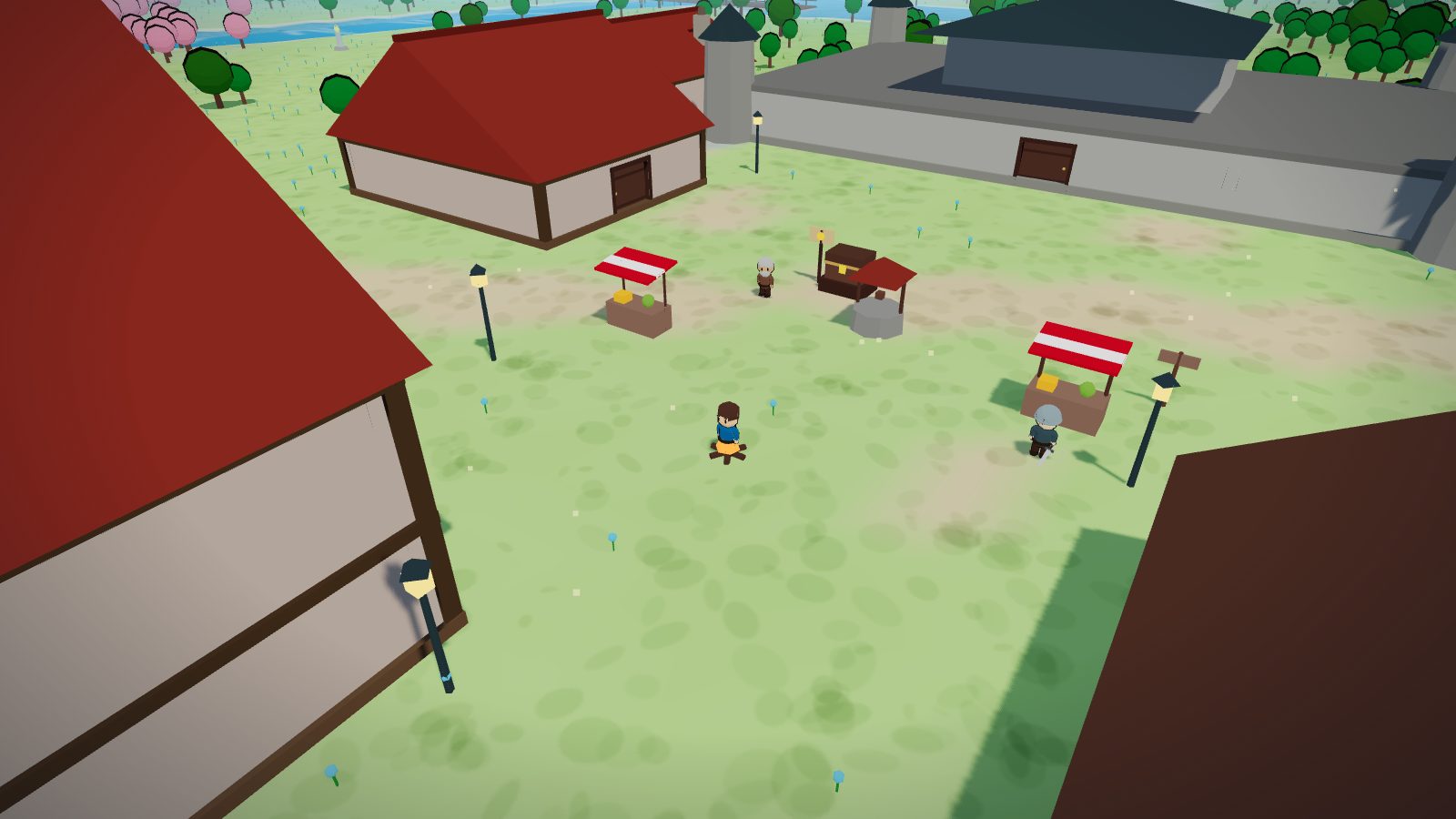
Then go and find Mother Rowan in Brightmeadow and start the first quest. It teaches you fishing, cooking and woodcutting and pays for your first upgrades.
Which browser and device to use
Ancient Warden draws a full 3D world in your browser. Every browser can do that, but some do it better than others.
Use Chrome if you can
We build and test the game on Google Chrome first, so Chrome is where it looks best and runs fastest. Chrome tends to get the most out of your graphics chip, has the best support for installing the game as an app, and gets fixes for 3D bugs quickly.
Browsers built on the same engine behave almost the same, so Microsoft Edge, Brave, Opera and Vivaldi are as good in practice.
| Browser | How it runs | What to know |
|---|---|---|
| Chrome (Windows, Mac, Linux, Android) | Best | What we develop against. Full install support and the best speed. |
| Edge, Brave, Opera, Vivaldi | Best | Same engine as Chrome, so they run the same. |
| Firefox | Good | Plays fine. Can be a little slower in busy towns on some machines. Try one graphics tier lower if it stutters. |
| Safari on Mac | Good | Plays fine. Installs to the Dock instead of showing an install button. Needs Safari 17 or newer for that. |
| Safari on iPhone and iPad | Good | The only way to install the game on an iPhone or iPad. See below. |
| Very old browsers | Will not run | The game needs a browser from roughly the last five years. If the screen stays black, update your browser first. |
Phones, tablets and computers
Computer
The best way to play, with the biggest screen and the most power. Right click gives you extra options on everything.
Tablet
Big enough for the panels, with full touch controls.
Phone
Everything works, laid out for one hand. Panels go full width and the tab bar moves to the bottom. Press and hold replaces right click.
The same character works on every device, so you can fish on your phone at lunch and carry on at your desk in the evening.
Installing the game as an app
You can install Ancient Warden on your device like a normal app. It is the same web game with its own icon and its own window, and no browser bars around it.
Why bother
More screen
No address bar, tabs or bookmark strip. On a phone that frees a lot of screen.
Opens in one tap
An icon on your home screen, dock or start menu, so there is no address to type.
Loads quicker
The page shell is kept on your device after the first visit, so it opens faster and shows a proper offline page instead of a browser error if your connection drops.
Fewer accidents
A stray swipe cannot send you back a page in the middle of a boss fight.
How to install it, device by device
Each company allows something different, so the steps depend on your device.
| Device | What you do | What you get |
|---|---|---|
| Android (Chrome, Edge, Brave) | An Install app button appears on the site. Tap it and confirm. You can also use the browser menu and choose Install app or Add to Home screen. | An app icon in your app drawer. Opens fullscreen with no browser bars. |
| Windows and Linux (Chrome, Edge) | An Install app button appears on the site. There is also a small install icon at the right of the address bar. | Its own window with no tabs, and an entry in your start menu or applications list. You can pin it to the taskbar. |
| iPhone and iPad (must be Safari) | Tap the Share button in Safari, the square with an arrow pointing up. Scroll down, tap Add to Home Screen, then tap Add. | An icon on your home screen that opens fullscreen. Apple does not allow other browsers to do this, so open the site in Safari first. |
| Mac (Safari 17 or newer) | Click the Share button in Safari's toolbar, then choose Add to Dock. | Ancient Warden in your Dock, opening in its own window. If you do not see the option, you need a newer macOS. |
| Mac (Chrome, Edge) | Use the Install app button on the site, or the install icon in the address bar. | Its own window and an entry in Launchpad. |
The site shows the install button when your browser supports it. On iPhone, iPad and Safari on Mac the button shows the steps above instead, because those browsers have no one click install.
Fullscreen without installing
In game, open Settings and use the Fullscreen toggle. On a computer that fills the whole screen. On an iPhone the browser has no fullscreen button, which is why adding the game to your home screen is worth it there.
Your screen explained
The game screen, with its parts numbered in the list underneath.
- 1The health orb, top left. The number is your current health and the coloured fill shows how much is left. Green is healthy, orange is getting low, red means eat something now.
- 2The info line, beside the orb. Your combat level and how many coins you are carrying.
- 3The quest tracker, under the orb. The quest you are following, what to do next, and an arrow that always points at where you should go. Tap it to open your quest journal.
- 4The minimap, top right. White dots are other players, green dots are friends, yellow dots are townsfolk and red dots are monsters. Tap anywhere on it to walk there. Scroll the mouse wheel over it to zoom. On a phone, drag a finger up on it to zoom in and down to zoom out.
- 5The compass, on the corner of the minimap. Tap it to turn the camera back to north.
- 6The map button. Opens the full world map. Keyboard shortcut M.
- 7The boot button. Switches between walking and running. It glows when running is on, and the game remembers your choice.
- 8The message log, bottom left. Short notes about what just happened, colour coded: green for skills, yellow for quests, red for warnings, blue for the game talking to you.
- 9The tab bar, bottom right. Eight buttons that open your panels. On a phone these sit along the bottom of the screen.
There is also a chat panel in the bottom left corner. On a computer it starts open. On a phone it starts as a small bubble you can tap. Press Enter to type.
The eight tabs
| Icon | Tab | What it is for |
|---|---|---|
| Combat | Attack style, auto retaliate and your gear bonuses. More | |
| Skills | All twelve levels and how close you are to the next one. Tap any skill to see what it unlocks. More | |
| Inventory | Your backpack, 28 spaces. More | |
| Equipment | What you are wearing and holding. More | |
| Quests | Every story you have started or finished. More | |
| Friends | Add friends, see who is online, invite them in. More | |
| Magic | Your spellbook. More | |
| Settings | Graphics, sound, help, log out. More |
Tap a tab button again to close its panel and clear the view.
Controls
Everything in the world works the same way. Click it, or tap it on a touch screen, and your character walks over and does the sensible thing.
| What you want | Computer | Phone or tablet |
|---|---|---|
| Walk somewhere | Left click the ground | Tap the ground |
| Attack a monster | Left click it | Tap it |
| Talk to a person | Left click them | Tap them |
| Chop, mine, fish, cook | Left click the tree, rock, water or fire | Tap it |
| See what something is called | Point at it. Its name shows over it | Tap it. The name shows for a moment |
| See all the options for something | Right click it | Press and hold it |
| Turn the camera | A D, left and right arrows, or hold the middle mouse button and drag | Drag with one finger |
| Tilt the camera up and down | W S or up and down arrows | Drag up and down |
| Zoom in and out | Scroll wheel | Pinch |
| Face north again | Click the compass on the minimap | Tap the compass |
| Walk or run | The boot button beside the minimap | |
| Open the world map | M or the map button | The map button |
| Item options: eat, wear, drop, examine | Right click the item in your bag | Press and hold the item |
| Chat | Enter, type, Enter again | Tap the chat bubble, then the box |
| Close a menu | Esc | The ✕ button |
Getting around
Walking and running
Click or tap the ground and you walk there. Tap the boot button beside the minimap to run instead, which is faster on long trips. The button glows while running is on, and the game remembers your choice.
Top left, the compass. Puts the camera back to facing north.
Bottom left, the map. Opens the full world map, or press M.
Bottom right, the boot. Walk or run. Glowing means running.
The circle itself. Tap anywhere on it to walk to that spot. White dots are other players (green for friends), yellow dots are townsfolk, red dots are monsters.
The world map
The map button, or M, opens a map of the whole realm. Tap a place on it to travel there, which saves a lot of clicking on long journeys. You still walk the whole way, so it takes time, and anything hostile on the road can still attack you.
To plan a trip before you log in, use the world map on this site.
Doors, upstairs and downstairs
- Buildings are real places, not painted scenery. Walk through the door and the roof lifts away so you can see inside.
- Stairs lead up in inns and some larger buildings. Click the staircase to go up, and click it again to come back down.
- Caves have a marked entrance on the surface: a dark hole ringed with rocks, a grate in a street, or a stair tucked into a ruin. Click it to climb down, and use the lit exit inside to climb back out.
Teleporting
Once you have some Magic, teleport spells replace most walking. There is a free Homeward teleport from level one that gets you out of anywhere, and city teleports unlock as your Magic level climbs. See Magic and sigils.
If you get stuck, Settings has a Stuck? Return to Brightmeadow button that always works and costs nothing.
Talking to people and doing quests
Talking
Click any person to talk to them. A conversation window opens with what they say and your possible replies. Click a reply to continue. Some people also run shops. Right click them for a Trade with option that skips the small talk.
Talk to everybody. People point the way to nearly every secret in the realm, and many quests only appear after you talk to the right person.
Starting a quest
A quest starts when you talk to the person who has the problem. There is no quest board and no accept button. Once a quest starts it appears in your Quests tab.
The quest journal
What the colours mean:
- Green and crossed out means finished.
- Yellow means you are in the middle of it.
- Plain means you can start it but have not.
- Dim with a padlock means an earlier quest has to be done first.
Tracking a quest
Open a quest and choose to track it. Its next step appears in the small panel under your health orb, with an arrow that points at where you need to go and says how far away it is. Tap that panel at any time to jump back into the journal.
On a collection step, you get a message as soon as your bag holds everything the step needs. Follow the arrow back to whoever sent you.
The main story
The main storyline is The Ancient Warden, fifteen quests in three acts, played in order. Each one opens the next. The first is an errand out of Brightmeadow.
| Quest | Starts with | Difficulty |
|---|---|---|
| Act I, The Crack | ||
| The Road from Brightmeadow | Mother Rowan, Brightmeadow | Novice |
| What the Stones Remember | Ferrin Vael, Valeport quay | Novice |
| A Census of Small Miracles | Archivist Senna, Coronmar plaza | Intermediate |
| Where the River Goes | Wen Alcaster, Vale Heights rim | Experienced |
| Ash on the Wind | Sergeant Halda, Highspire | Experienced |
| The Steam and the Lake | Wen Alcaster, Vale Heights rim | Experienced |
| The Grey Answer | Preceptor Aldous, Castle Greyhold | Experienced |
| Vaurenth | Hearthkeeper Brann, Frosthollow | Master |
| Act II, The Gilding | ||
| The Gilded Coast | Quartermaster Ives, Solmara docks | Experienced |
| The Scholars of Vessa | Scholar Imres, Vessa | Experienced |
| Seven Voices | Scholar Imres, Vessa | Master |
| The Hollowvale | The Hollowvale, north past Vessa | Grandmaster |
| Act III, The Lie | ||
| The Concord of Nine | The rim-script, the Vale Heights | Grandmaster |
| Velmora | The Master of Velmora | Grandmaster |
| The Ashen Choir | Cantor Ilse, Vesperion | Grandmaster |
The table leaves the story out on purpose. For more detail, the wiki has the full quest list.
The Sere
The Sere is a storyline of four quests in two acts, south of the Rainwall. See Where to go for the way there.
| Quest | Starts with | Difficulty |
|---|---|---|
| Act I, The Tombs | ||
| The Sealed Door | Keeper Ashet, the Tombs | Experienced |
| Act II, The Salt Road | ||
| The Jackal Road | Caravan Master Ruel, Stonegate | Experienced |
| The Risen Crust | Salt Cutter Oswin, Whitebrink | Experienced |
| Queen of the Long Sand | Factor Idris, the Amber Hall in Ambermouth | Master |
Fighting
Click a monster and your character walks over and fights it. Fights carry on by themselves until something dies or you walk away.
There are no classes
You fight as a warrior, an archer or a mage by holding a sword, a bow or a staff. Swap the weapon to change how you fight, with no penalty and no wait. One character can be all three.
The Combat tab
This tab changes to match whatever is in your hand, so you never see a choice that makes no sense, like training Attack with a bow.
Attack style decides which skill you train while you fight. You can change it mid fight.
Auto retaliate is on by default. If something attacks you, you fight back instead of standing there taking it.
The bonus grid adds up everything your gear gives you. Bigger numbers mean you hit more often, hit harder, or get hit less.
Styles with a melee weapon
- Accurate trains Attack, which helps you land hits.
- Aggressive trains Strength, which makes your hits bigger.
- Defensive trains Defence, which makes enemies miss you more.
Styles with a bow
- Accurate for the best aim.
- Rapid for faster shots.
- Longrange for two extra tiles of reach, splitting the experience with Defence.
Styles with magic
- Accurate for the best chance to hit.
- Defensive to split the experience with Defence.
Every fight also trains Vitality, which raises your maximum health, whatever style you picked. Each kind of weapon remembers its own style choice, so switching from a sword to a bow and back does not lose your settings.
The combat triangle
Each way of fighting beats one of the others and loses to the third. Magic beats melee, melee beats range, and range beats magic.
Fight something with the style it is weak to and you land hits a little more often and hit a little harder. Fight it with the style it is strong against and both drop a little. The effect is small, and your levels and gear still decide the fight.
So against a wizard a bow does better than a sword, and a spellcaster's bolts hit a swordsman harder than an archer. The wiki says how every monster fights.
A hit can never take more health than a monster has left. If it is down to its last 4, the biggest hit you can land on it is a 4.
Fighting with a bow
Hold a bow
Wear it from your inventory like any other weapon.
Load your arrows
Click your arrows in the inventory and they go into the Ammo slot in the Equipment tab. That slot holds a whole stack and shows how many are left.
Shoot
Click a monster. Better arrows hit harder, so upgrade them as you level up. Keep an eye on the count so you do not run out mid fight.
Fighting with magic
Open the Magic tab and tap a combat spell to set it as your autocast. Then attack a monster and you cast it over and over. Each cast spends a few sigils, the small magical stones in your bag.
The Combat tab shows which spell you are casting and has a Clear button to stop. The details are in Magic and sigils.
Knowing what to fight
Every monster shows its name and level above its head, colour coded against you:
- Aggressive creatures like wolves and skeletons attack you on sight, but only while you are around their strength. Once your combat level is more than double theirs, they leave you alone. An area that was dangerous at level 20 can be safe at level 50.
- Bosses attack you whatever your level.
Food, healing and dying
How to heal
Eat food
Click any food in your bag to eat it and get health back straight away. Better food heals more. This is how you heal in a fight.
Sleep in a bed
Go upstairs in any inn, click a bed, and your health is fully restored. It costs nothing, and you can do it as often as you like in any village.
Visit the chapel
The Brightmeadow chapel heals you for free when you are in town.
Wait it out
Health comes back slowly on its own, too slowly to help in a fight.
Food comes from Fishing and Cooking, which is why almost everyone trains them early. Catch and cook your own and you never need to buy food.
What happens if you die
You wake up at the Brightmeadow chapel with everything you were carrying. Death costs you the walk back, not your gear.
Two exceptions:
- In the Eventide Colosseum the stewards prop you up outside the door. Arena fights give no experience and no loot. They test your gear against monsters far stronger than anything else in the game.
- If a world has player versus player switched on, other players in that world can attack you. It is off unless someone turns it on, and everyone in the world gets a warning badge on their screen when it is on. See Worlds and realms.
Skills and training
There are twelve skills, and each runs from level 1 to level 99. You do not choose which ones to have. You get better at whatever you do.
The Skills tab
The big number is your level. The green bar under it shows how far you are towards the next one.
Tap any skill to open a list of everything it unlocks and the level for each. The ones you have reached are ticked off.
What the levels feel like
| Levels | How it feels |
|---|---|
| 1 to 10 | Starting out. Weak, but everything is an improvement. |
| 11 to 30 | Finding your feet. You can handle the basics. |
| 31 to 50 | Capable. Most of the realm opens up. |
| 51 to 80 | Strong. Low level content is no longer a threat. |
| 81 to 95 | Among the best in the realm. Bosses become a fair fight. |
| 96 and up | Very little in the world can stand up to you. |
The twelve skills
| Skill | How you train it | What it gives you | |
|---|---|---|---|
| Attack | Fight with a melee weapon on Accurate | Land more hits, and wear better weapons | |
| Strength | Fight with a melee weapon on Aggressive | Hit harder | |
| Defence | Fight on Defensive | Get hit less, and wear better armour | |
| Vitality | Any fighting at all | More maximum health | |
| Range | Fight with a bow | Better bows and better arrows | |
| Magic | Cast spells | Stronger spells, more teleports | |
| Woodcutting | Click a tree while holding an axe | Better logs for fires and for building | |
| Mining | Click a rock while holding a pickaxe | Ore, which becomes bars, which becomes gear | |
| Smithing | Use a furnace, then an anvil | Make your own weapons and armour | |
| Fishing | Click water with the right tool | Raw food, and money | |
| Cooking | Use a fire or a stove | Food that heals a lot more than the raw version | |
| Kindling | Light logs with a tinderbox | A campfire anywhere, for cooking on the road |
How to do each job
Chopping wood
Buy an axe, keep it in your bag, and click any tree. Your character does the rest, and logs land in your bag as they come. Trees run out for a moment and grow back.
Regular trees at level 1, oaks at 15, willows at 30, maples at 45, yews at 60, magic trees at 75 and elders at 90.
Mining
Buy a pickaxe, keep it in your bag, and click a rock. Copper and tin at level 1, iron at 15, coal at 30, gold at 45, cobalt at 55, verdite at 70 and arcanite at 85.
Fishing
Each catch needs its own tool. Right click the water (or press and hold it) and pick a method from the menu. It lists only the methods you are carrying the tool for.
| Where | Tool | What you catch |
|---|---|---|
| Fresh water, lakes and rivers | Net | Shrimp from level 1 |
| Fresh water | Rod | Trout at 20, pike at 30 |
| The sea and its coasts | Net | Shrimp at 1, herring at 10 |
| The sea | Lobster pot | Lobster at 40 |
| The sea | Harpoon | Swordfish at 50, shark at 76 |
| Mirefen swamp pools | Net | Monkfish at 62 |
| Frostpeak ice holes | Rod | Frostfin at 90 |
Cooking
Click a fire or a stove while carrying raw food and you will cook it. You burn some at low levels, and that stops as your level climbs.
Making a campfire
Carry a tinderbox and some logs. Right click the logs in your bag and choose Light fire. The fire starts where you stand, so you can cook what you just caught without walking back to town.
Smithing
Mine some ore
Copper and tin make bronze. Iron plus coal makes steel, and so on up the tiers.
Smelt it at a furnace
Click a furnace with the ore in your bag and pick what to make. Ore becomes bars.
Hammer it at an anvil
Click an anvil with bars and a hammer, and choose the weapon or armour piece you want.
Items, your bag and your gear
Your inventory
Your backpack holds 28 things. Coins, arrows, sigils and other stackable items take a single space however many you have.
One click does the obvious thing. Click food to eat it, click armour to wear it, click a weapon to hold it, click arrows to load them.
Right click, or press and hold, for everything else.
The little number in the corner is how many you have of a stackable item.
Drag items around the grid to rearrange your bag.
The item menu
Right click any item in your bag, or press and hold it on a touch screen, and you get its options.
- Eat appears on anything edible.
- Wield or Wear appears on weapons and armour.
- Equip appears on arrows and loads them into your ammo slot.
- Light fire appears on logs, if you are carrying a tinderbox.
- Use on… points the item at something else in the world. Many quest steps and most crafting work this way.
- Examine describes the item.
- Drop puts it on the ground. Some quest items cannot be dropped.
On a computer, hovering over any item shows a card with its stats, the levels it needs and what it is worth. Requirements you do not meet yet show in red.
Your equipment
You have six slots. Click anything in the Equipment tab to take it off again.
Head, Body, Legs, Weapon and Shield are your armour and weapon slots.
Ammo is the quiver. It holds a whole stack of arrows and shows how many are left. It is not drawn on your character.
The grid at the bottom is the total of everything you are wearing.
Gear tiers
Gear comes in tiers, and each tier needs the matching level in the right skill. Swords need Attack, armour needs Defence, bows need Range, staves and robes need Magic.
| Level | Melee | Range | Magic |
|---|---|---|---|
| 1 | Bronze | Shortbow, leather | Staff, novice robes |
| 10 | Iron | Oak bow | Elemental staves |
| 20 | Steel | Willow bow, studded | Wizard robes |
| 30 | Cobalt | Maple bow | Battlestaff |
| 40 | Verdite | Yew bow, wild hide | Mystic robes |
| 50 | Arcanite | Magic bow | Mystic staff |
| 60 | Draconite | Elder bow, drakehide | Enchanter robes |
| 70 | Shadow | Spectral bow | Ancient staff |
| 80 | Ancient | Ancient bow, ancient hide | Archmage robes |
| 90 | Keeper's | Keeper's bow | Keeper's staff |
Shops sell gear up to about the middle tiers. Above that, you smith it yourself or take it from whoever carries it.
Shadow gear comes from shadow knights, draconite from the dragon and the great drakes, ancient gear from the guardians of the Old Keep, and keeper's gear from the Warden himself.
Every piece keeps its own bonuses, so you can mix pieces from different sets freely.
Legendary weapons
The realm's bosses drop unique weapons that no shop stocks, each with its own look and trick. Among them are the fast Gnawer's Shiv, the crushing Golemfist Maul and the smouldering Emberfang. They are rare drops.
Above them are three Ultimate weapons, each needing level 90 in its skill:
- Dawnbreaker (melee) heals you for a third of every hit you land, so you never need food. Nothing in the realm drops it any more.
- Skypiercer (range) makes its own bolts of light and never needs arrows. Only The Freeze, at the bottom of the Hoarfrost Deep, carries one.
- Staff of Creation (magic) casts every spell in every book without spending sigils. The Ember hoards the only one, deep in the Ashen Cellar.
Shops: buying and selling
Shops turn what you gather into the gear you want, and every town has some. One window handles buying and selling. The top half is what the shop sells, and the bottom half is what you can sell to it.
Opening a shop
Find the shopkeeper
Shops are inside buildings and at market stalls. Walk through the door and the roof lifts off so you can see who is in there.
Click them
Left click starts a conversation, and choosing to see their wares opens the shop. If you want to skip the chat, right click them (or press and hold) and choose Trade with.
The shop window opens
Your coin count is at the top.
Buying, step by step
- 1Find the item you want in the top grid. Each card shows its picture, its name, the price in gold, and how many the shop has in stock.
- 2If the item needs a skill level, it is written under the stock in red, like "Attack 20". You can still buy it, but you cannot use it until you reach that level.
- 3Press Buy 1 or Buy 5 for the quick amounts, or Buy X to type in exactly how many you want.
- 4The coins come out of your bag and the item goes into it. The coin count at the top updates straight away.
Shops restock over time, so come back later for anything sold out.
Selling, step by step
- 1Scroll down to Your items. Everything in your bag that the shop will take shows up there, with the price you would get.
- 2Choose your Sell amount first: 1, 5, a number you type with X, or All. Whichever is highlighted is what a tap will sell.
- 3Tap the item. The coins go into your bag right away.
Quest items cannot be sold, and neither can anything with no value. If something is not in the sell list, that is why.
The bank
Your bag holds 28 things, and the bank holds the rest. Look for a bank chest in any decent sized town and click it.
The bank holds up to 128 different kinds of item, and each kind stacks without limit, so a hundred thousand oak logs take one of your 128 spaces. A Keeper account has no limit on kinds, and nothing already banked is ever lost if that upgrade lapses.
How to use it
- 1Pick an Amount at the top: 1, 5, 10, a number you type with X, or All. It applies to deposits and withdrawals alike.
- 2To store something, tap it in the lower grid, which is your bag.
- 3To take something out, tap it in the upper grid, which is the bank.
- 4Deposit inventory empties your whole bag into the bank in one press.
Your bank travels with your character, so anything you put in is available at any bank chest anywhere in the world.
Where coins come from
No shop sells coins, and there is no premium currency or wallet. Every coin you spend, you earned. These are the sources, roughly in the order you meet them.
Monster drops
Almost everything you kill drops something: coins, bones, pelts, feathers, sometimes gear. Pick it up and sell what you do not want.
Selling what you gather
Logs, ore, fish, hides. Safe, steady money that trains a skill as you earn it.
Quest rewards
Many quests pay well. The early ones pay enough to buy your first proper kit.
Treasure chests
Every proper cave hides a chest in its deepest room. They refill after a few minutes, and the deeper the cave, the better the haul.
Smithing
Turning ore you mined into gear is worth much more than selling the ore raw.
Boss loot
Late game bosses drop unique weapons that no shop stocks and that other players want.
What to spend it on, in order
- An axe and a tinderbox, before you leave your first town. Cooked food from your own fire is free healing.
- A pickaxe, a net and later a rod.
- A weapon and armour set roughly matching your level. A new sword every 10 levels makes a clear difference.
- Arrows and sigils, if you are using a bow or magic. These are the ongoing costs.
- Later on, a home and the portals to go in it.
Magic and sigils
What sigils are
Sigils are small stones that spells burn as fuel. Every spell lists which ones it needs and how many. They stack, so a thousand of them take one space in your bag.
Hold a staff and you are a mage. There is nothing else to switch on.
You buy sigils from magic shops. Eldric at the wizard's tower in Duskmoor is the usual first stop. Rarer ones come from specialist sellers, like Mystic Zara in Zahara, once you have earned her trust.
The spellbook
The small number in the corner is the Magic level a spell needs.
- Bright and clear means you can cast it right now.
- Slightly dimmed means you have the level but not the sigils.
- Grey and faded means the level is too low, or a quest still has to be finished.
- Glowing purple means it is your current autocast spell, or a toggle spell that is switched on.
Hover a spell on a computer, or press and hold on a phone, to see which sigils it needs. Ones you are short of show in red.
How to cast
| Kind of spell | What to do |
|---|---|
| Combat spells | Tap the spell once to set it as your autocast, then attack a monster to cast it on repeat. Tap it again, or use Clear on the Combat tab, to stop. |
| Teleports | Tap it and you go. No target needed. |
| High Alchemy | Tap the spell, then tap an item in your bag to turn it into gold. Tap the spell again to cancel. |
| Toggle spells like levitation | Tap once to turn on, tap again to turn off. They glow while active. |
| Trade rites | Tap once to arm the rite and it summons its ghostly tool. The sigils are spent each time the work starts, not before. Tap again to dismiss it. |
The three spellbooks
Elemental is the book everyone starts with. It runs from Gale Dart at level 1 up to Flame Fury at level 95, with teleports to eighteen towns and cities. The free Homeward teleport, open from level one, gets you out of anywhere.
The Ancient Rites are a second book, written by nobody from these lands. You learn them far to the east, on the Gilded Coast, from scholars who can still read the old script. The book opens chapter by chapter as that story unfolds.
The rites are not attack spells. They are workings you switch on and leave burning:
- The trade rites (Magic 50) summon a ghostly violet axe, pickaxe or fishing tackle of the highest tier. One trade rite can be armed at a time, and it spends its sigils when the work starts.
- The Rite of Healing (Magic 50) heals you a little at a time for as long as it burns.
- The Rite of Levitation (Magic 80) opens later in the story, and the Violet Zenith (Magic 99) is its final chapter.
While any rite burns, small chips under your health orb show each sigil being spent and a running count of what the rites have taken.
The Fabled Magicks are the war-spells of the same dead people, and the last thing the story teaches you. They hit harder and each carries an extra effect:
- Blight spells poison your target.
- Wither spells weaken its attack.
- Leech spells heal you for part of the damage.
- Ice spells freeze your target where it stands.
Each comes in four strengths: Curse, Hex, Siege and Cataclysm. Ice Cataclysm at level 94 bursts on impact and can freeze a whole pack at once.
You switch between the books with the toggle at the top of the tab. Switching books keeps your autocast spell and leaves any burning rites running. Until you have done the quest that opens a book, its locked tab names that quest.
Sailing
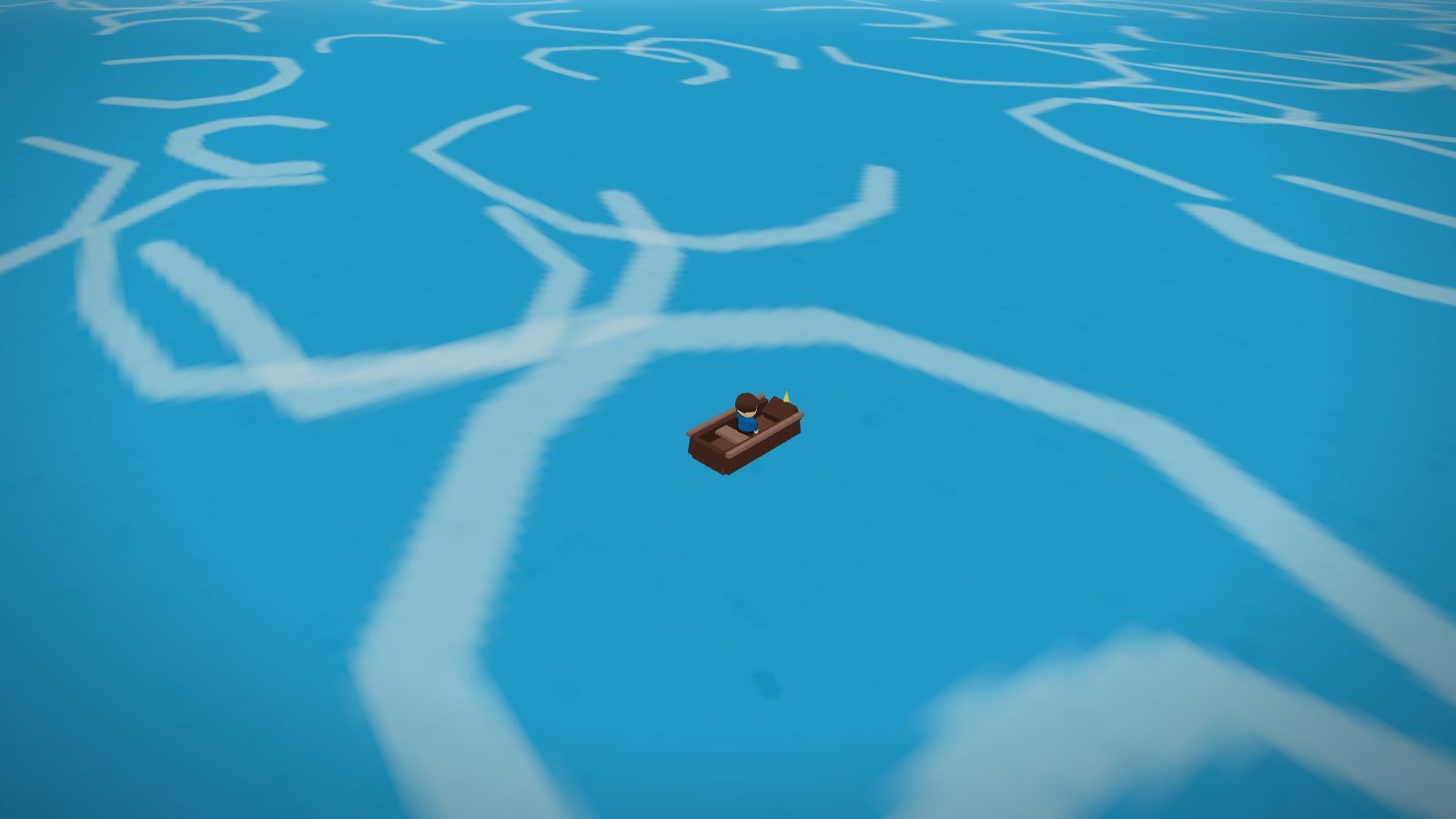
If you can see an island on the horizon, you can sail to it and walk around on it. There are no painted backdrops in this game.
Earn your skiff
The main story gives you a folding coastal skiff when you take passage east from the docks at Solmara. There is nothing to buy.
Click open water
Once the skiff is folded on your back, clicking any open water launches it and sails you there. Click land to beach it and step off again.
Stay on the bright water
The dark deeps at the edge of the world sink skiffs. If the water looks black, do not go there.
Sailing opens up the coasts, plus Gullwing Isle, Corsair's Hold, Mirrormere and the Wreck of the Gulls' Wager, the whole southern tropical sea, and the crossings to two other continents. High level mages can skip the voyages with city teleports.
Your own home and farm
Once you have found your feet you can build a private house of your own.
Go to the ElderHeart
Find Bodkin the builder standing by the bank chest.
Open his catalogue
Talk to him and the build catalogue opens. It lists every room, every piece of furniture and every portal, with what each one costs and what it needs.
Pay from the bank
Your first room's coins and materials come straight out of your bank, which is why Bodkin stands at the chest. You do not have to carry a hundred logs in your bag.
Step through the door
You are in your own home. Use the Build button that appears at the bottom of the screen to add and arrange rooms and furniture.
Farming
Your home comes with plots out in the sun. Till a plot and sow a seed won from skilling, and the crop grows in real time, even while you are logged out. The growth is worked out when you next visit.
Harvesting gives you power food, which heals well and briefly boosts your stats. By design it is not the best food in the game. Now and then you get a seed back, so you can keep replanting.
Getting home, and getting out again
- The Hearth Teleport spell (Magic 30) takes you back to your own hearth from anywhere. It stays locked until you own a home.
- Inside, you can place city portals, each one a teleport to that city straight from your own hall. A home portal costs 200 times the sigils the matching teleport spell would normally burn.
Visitors
Friends who are in your session can visit while you are there, but only you can build or farm. Guests can only look around, and you can send one back to the ElderHeart at any time.
The wiki has every room, crop, portal cost and grow time if you want the numbers.
Games, arenas and treasure
The games of Castle Greyhold
Castle Greyhold, in the south, is a walled castle given over to games. You win Greyhold tickets and trade them for prizes.
The archery contest
Talk to Range Master Ivet to start. You have 60 seconds to hit the glowing target as many times as you can, and hits on the lit one build a streak worth more points. You need a bow in hand and arrows loaded, and each shot spends an arrow. Score 30 or more to win tickets. You get Range experience either way.
The Pit
Step through the door into the arena and start it. Three waves of monsters come at you. Beat all three to win 6 tickets, 750 coins and a large amount of health experience.
Lady Fortuna's dice
A game of chance, played through conversation.
The Eventide Colosseum
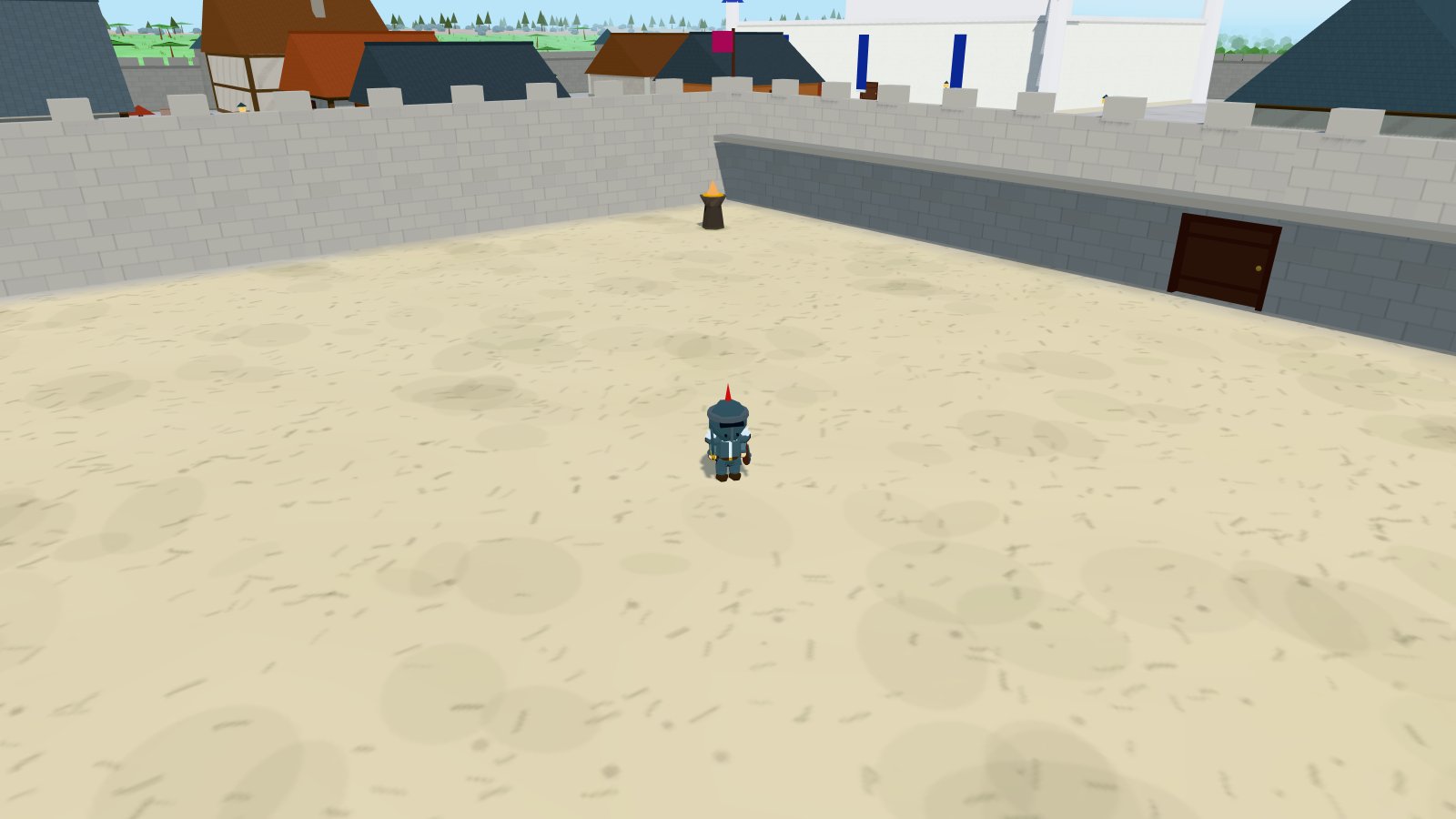
Three monsters wait on the sand: the Pit Behemoth (level 138), the Storm Revenant (124) and the Iron Colossus (146).
Arena fights give no experience and no loot. If you fall, the stewards prop you up outside the door with everything still on you.
Use it to test endgame gear against monsters far above anything else in the game before you risk that gear for real.
Treasure chests
Every proper cave hides a treasure chest in its deepest room, and the Coronmar sewers keep one per level. Chests refill after a few minutes, and the deeper you go, the better the haul.
The two sealed lairs have no chest. Each holds one monster far above anything else in the game, and the single weapon it carries.
The Warden Vaults
Twenty-seven sealed trial chambers lie under the three shores, each with its own puzzle behind the door. A vault pays its prize once, and then its seal goes dark for you for good.
No map marks them and no tracker points the way, so finding them is part of the trial. An old man by the Vault of the Harvest, south-east of Brightmeadow, keeps the tally. He says he has a wage for whoever empties all twenty-seven.
Hidden collectibles
Small floating glints are scattered around the world. They are easy to miss, and you collect one by clicking it.
Three of the ten cave systems are hidden. Rumour says certain lonely ruins hide a stair down to mines the maps never marked.
Friends and playing together
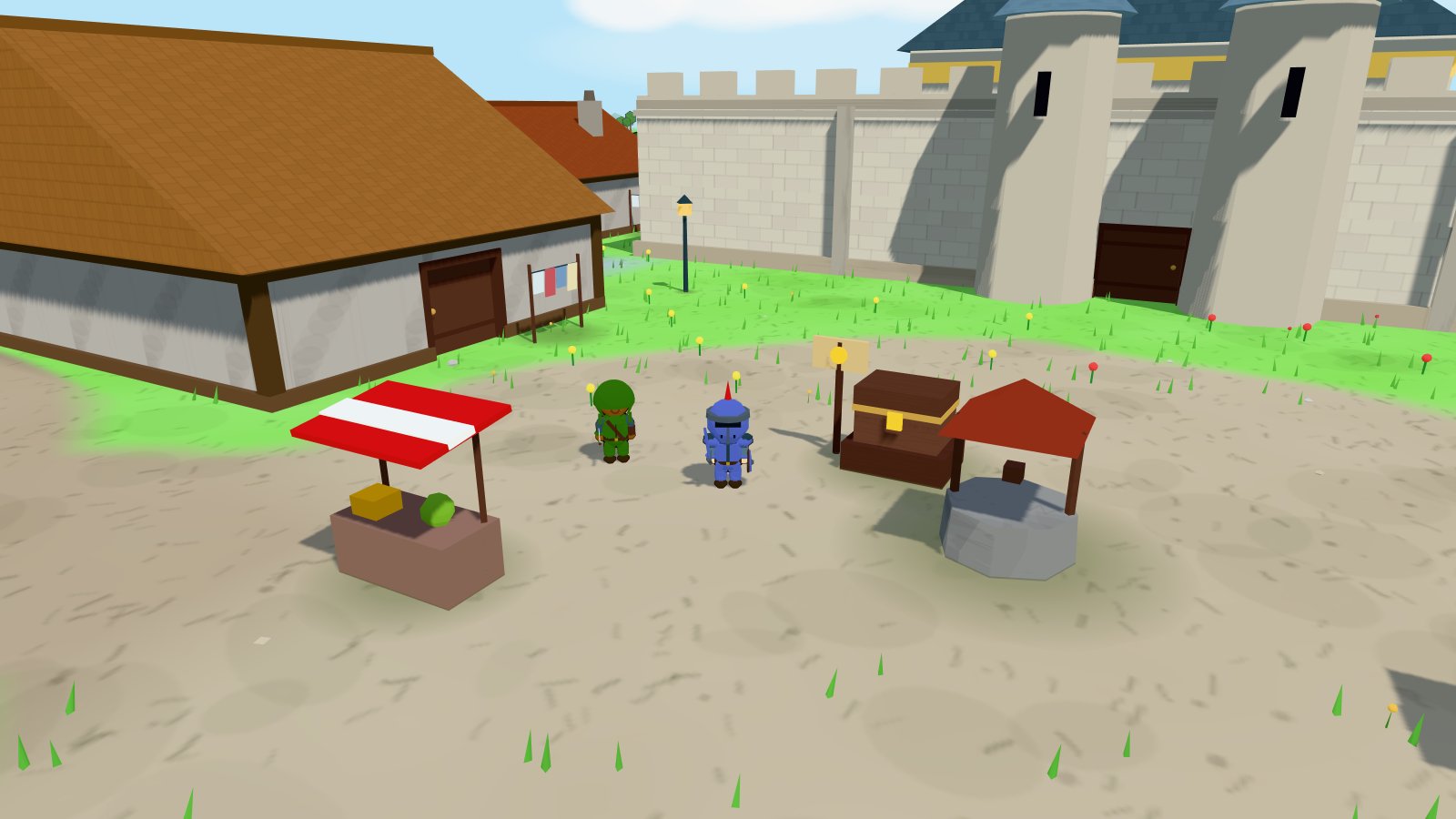
Adding a friend
Open the Friends tab, type their username in the box at the bottom and send the request. They accept it from their own Friends tab. After that you can see when each other is online.
The Friends tab
Green dot means online right now. Grey dot means offline.
Invite asks them to come into your game.
Ask to join asks to be let into theirs. They have to say yes.
Requests and invites both show up as rows at the top of this tab, so if you miss the pop up you can still act on it later.
Getting into the same world
One of you opens a world
Whoever presses play first is the host of that world.
Send the invite
Press Invite beside their name, or type /invite theirname in chat.
They accept
A prompt appears on their screen. They confirm, and they arrive in your world.
Play
A small roster appears on screen showing who is in. A free host can have one friend in at a time and a Keeper host four, and the host can lower that limit whenever they like.
Chat
Press Enter to type, Enter again to send. On a phone, tap the chat bubble in the corner. You can collapse chat down to that bubble at any time, and the game remembers your preference.
There are a few typed commands, mostly for whoever is hosting:
| Command | What it does | Who can use it |
|---|---|---|
| /invite name | Invites a friend into your world | Anyone |
| /kick name | Removes someone from the world | Host |
| /pvp on or off | Lets players attack each other | Host |
| /worldchat on or off | Turns chat on or off for the world | Host |
| /cap 1 to /cap 4 | Sets how many people can be in the world | Host |
Typing an unknown command lists all of them for you.
Postcards
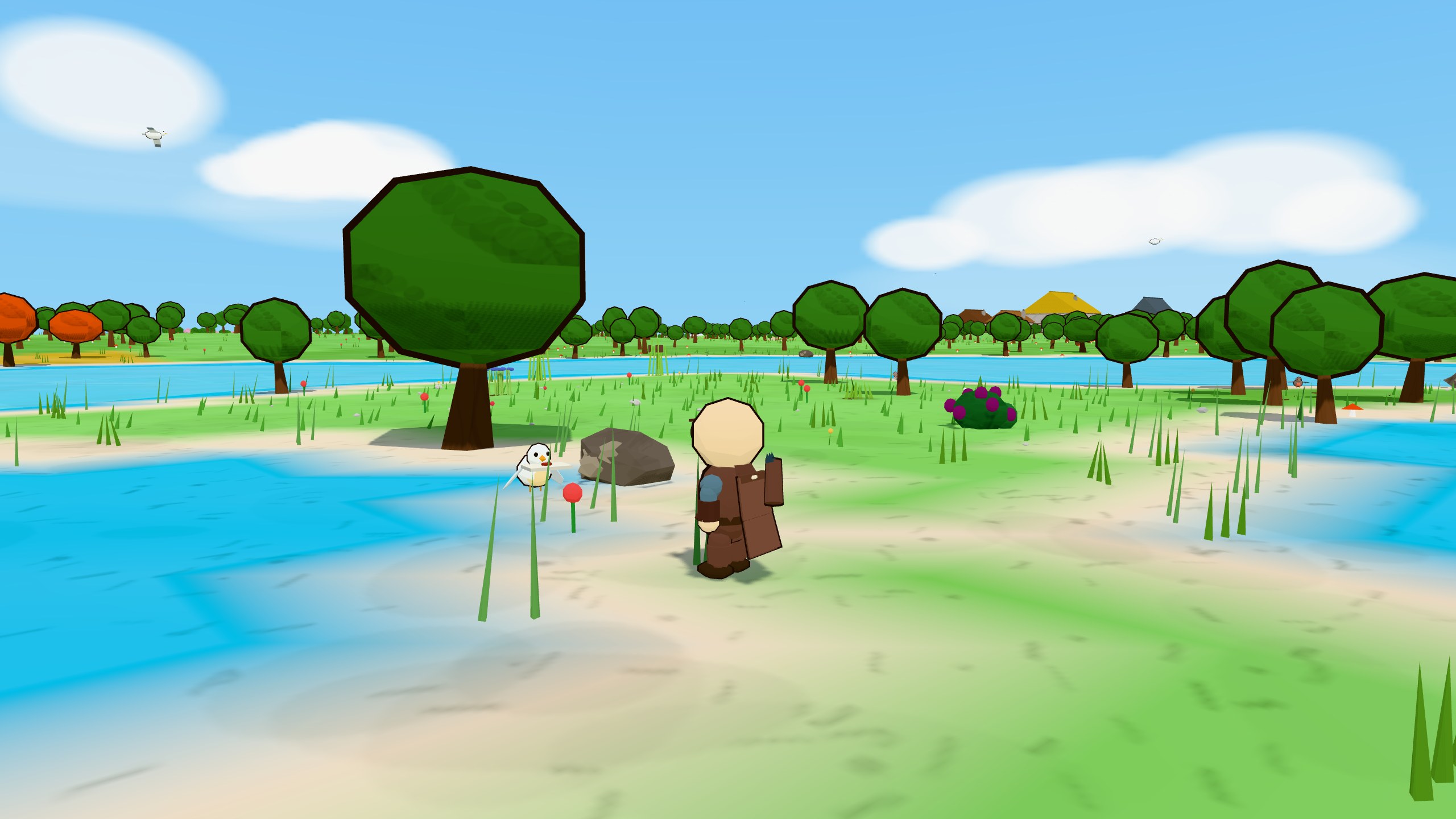
You can mail a friend a postcard, a picture of wherever you are standing with a short note on the back. Pick a friend in the Friends tab and the camera becomes your viewfinder. Drag to orbit, zoom, write your note and send. A courier bird collects the letter.
The courier finds your friend when their hands are free. They choose to read it now or later.
- Received postcards live in the album on the Friends tab. It keeps the newest ten, and older ones fade as new mail arrives.
- Save the ones you want on your shelf. A shelf holds 5 postcards, or 20 with Keeper.
- Above ground the courier is the white bird, on the lawn of your own home included. Underground a mole digs up through the floor instead, so mail reaches you in the deepest cave.
- Each friend can get one postcard from you per hour. The picture shows your character as you stood there, gear and all.
Trading with another player
Trading swaps items directly between two players. It has a couple of extra steps, and they make scamming very hard.
Offer the trade
Press Trade beside their name in the party roster on screen. They get a small prompt and can accept or decline.
Put items in
Click items in your inventory to add them to your side. For a stack, you are asked how many. Click anything on your own side again to take it back out.
Lock your offer
Press Lock offer when you are happy. Both of you have to lock before anything moves on.
Wait out the countdown
A ring counts down five seconds. The pause gives you a last look at what is on the table.
Confirm
The Confirm button only becomes usable when the countdown finishes. Both of you confirm, and the items swap.
Quest items and a few special items cannot be traded at all. If an item refuses to go in, that is why. Either side can press Cancel at any point and nothing changes hands.
Worlds and realms
Your character is the same wherever you play. What changes is the world you take it into.
Your own world
A private copy of the realm, for you and anybody you invite. A free account seats you and one friend. A Keeper account seats you and four. It runs while you play and closes when you leave. This is the default, and where most people play.
A realm
An always-on world that keeps running whether or not you are in it. Official realms are run by us. Player owned realms are rented and run by their owners, who set their own rules. Anybody can rent one. The store page lists the tiers and their prices.
Browse what is currently open on the realms page. Each card shows whether the realm is running right now, how full it is, and what it takes to get in.
World settings
If you are the host of your own world, Settings has a World settings button. Guests can open it too, but only the host can change anything.
PvP lets everyone in the world attack each other. Off by default. Turning it on asks you to confirm first, and everyone in the world sees a red warning badge on their screen the whole time it is on.
Chat turns typed chat on or off for the world.
Player limit counts everybody in the world, you included. A free account can set 1 or 2. A Keeper account can set anything up to 5. Lowering it does not remove anyone. It only stops new arrivals.
The Players tab lists who is in and lets the host remove someone.
If the host logs out, the world settings stay as they were.
Crowns beside names
Some names have a small crown next to them. It shows what authority that person has.
| Crown | Means | Where you see it |
|---|---|---|
| Gold | Game administrator | Everywhere. It travels with the account. |
| Silver | Game moderator | Everywhere. |
| Purple | Owner of that realm | Only inside their own realm. |
| Teal | Moderator of that realm | Only inside that realm. |
Everyone shows at most one crown, the highest that applies to them. A realm crown never shows outside the realm that granted it.
The Settings tab
The gear icon at the end of the tab bar opens it. Every option the game has is in here.
Settings save to your device as you change them. There is no apply button.
The three tiles at the top are the switches you use most. Each row below them opens a window.
| Control | What it does |
|---|---|
| Mute sounds | Silences everything with one tap. The tile lights up while the game is muted. |
| Fullscreen | Fills the whole screen. On an iPhone this shows how to add the game to your home screen instead, because Safari on iPhone has no fullscreen. |
| Roofs | Shown by default. A roof lifts away when you walk inside, or when it stands between the camera and you. Hidden lifts every roof in town, so you can see into the floor you are standing on. |
| Graphics quality | Picks the preset: Ultra, High, Medium or Low. See Graphics settings. |
| All settings | A window with a page each for Graphics, Sound, Accessibility and Controls. Every other setting is here. |
| World settings | PvP, chat and the player limit for your world. See Worlds and realms. |
| Help & Support | Replay the walkthrough, report a player, report a bug, contact support, or open this guide. |
| Return to Brightmeadow | A free teleport back to the starting town. Use it if you are stuck somewhere you cannot leave. |
| Log out | Top right of the tab. Signs you out. Your progress is already saved. |
Inside All settings, the Graphics page holds the preset, the device check and every effect on its own line. Sound has the volume sliders and the high-quality instrument pack. Accessibility has text size, motion and name tags. Controls has the camera zoom buttons and a reminder of the taps and keys.
You may also see a Warden's Menu row. That is a set of tools for testing the game. Using them marks your character for good, and marked characters only ever play with other marked characters. It warns you before anything happens. If you want your progress to count, leave it alone.
Graphics settings explained
People ask about these settings more than anything else. This section covers what each option does.
The game picks a setting for your device on its own and adjusts it if frames start to drag. Change things here only if you want better looks or smoother play.
The four quality presets
Picking one of the four presets in the dropdown sets every other option to match it.
| Preset | Best for | What you get |
|---|---|---|
| Ultra | A gaming computer | Full shadows that move with everything, characters included. The thickest grass and flowers, outlines on everything, and it never lowers the resolution to keep up. |
| High | Most desktops and decent laptops | Real shadows for the world (buildings, trees, rocks), simple round shadows under characters, thick ground cover, outlines everywhere. Lowers sharpness a little if frames start to drag. |
| Medium | Phones and tablets | No shadow map, only a soft round shadow under each character so nobody looks like they are floating. Medium ground cover, outlines only on nearby things. |
| Low | Older or slower devices | The same simple character shadows, the thinnest ground cover, no foam on the shoreline. Nothing is left out of the world. It is only cheaper to draw. |
If you change anything on the Graphics page, the dropdown changes to say Custom, because the preset name no longer matches what you see. Picking a preset again replaces your changes with that preset's values.
The Graphics page, option by option
Open Settings, press All settings, and you are on the Graphics page. Every change here applies instantly and saves to this device.
The word reload beside an option means that change only takes effect the next time you load the page, because your browser decides those two things when it first starts drawing.
Shadows
How shadows are drawn. This usually has the biggest effect on speed of any setting.
| Setting | What you see | Cost |
|---|---|---|
| Off | No shadows at all. Characters can look a bit like they are hovering. | Cheapest |
| Simple | A soft round shadow under each character and monster. No real shadows from buildings or trees. Looks good and costs almost nothing. | Very cheap |
| Low and Medium | Real shadows cast by the world: buildings, trees, rocks. They are worked out once and reused, so they do not follow moving things. Characters keep their round shadow. | Moderate |
| High | Full shadows that follow everything as it moves, characters and monsters included. | Most expensive |
Ground cover
How much grass, flowers and scatter covers the ground: Low, Medium, High or Ultra. More cover means more small things to draw, so turning it down helps on a phone.
Tall grass
The knee-high grass of the open fields between towns, which bends as you and the creatures around you walk through it. Off, Normal or Lush. It is one extra draw, but a field of blades is a lot of triangles. Off removes it, which helps a slow phone.
With a sword or another blade in hand, right-click long grass and choose Cut grass. You swing at the grass in front of you and it falls, sometimes dropping a coin, a herb, a feather or a seed. Everyone in the world sees the cut, and it grows back after a few minutes. The setting only changes what you see. The grass is there for everyone.
Outlines
The dark edge drawn around things, which gives the game its storybook look.
- Off is the cheapest and flattest.
- Nearby outlines only things close to you.
- Everywhere outlines everything you can see.
Render scale
How many pixels the game actually draws, from 40% up to 100%. At 100% it draws at your screen's full sharpness. At 60% it draws a smaller picture and stretches it up to fit, which is softer but a lot faster.
This is the strongest performance setting you have. Dropping to 80% often costs little in looks and gives a lot back.
Auto-adjust under load
When this is on, the game lowers the render scale a little when frames start to drag, and raises it again when there is room.
It is on by default on High, Medium and Low, and off on Ultra, because Ultra never lowers anything on its own. Turn it off if you would rather keep a constant sharpness and accept a slower frame rate.
Auto-reduce quality
If frames still drag after the render scale has gone as low as it goes, this drops the whole quality preset down one step.
It happens at most twice in a session, and stops once you pick a quality preset by hand. Turn it off to keep your chosen preset no matter what.
FPS cap
A limit on how many times per second the game redraws.
- Uncapped draws as fast as your screen allows. This is the default on computers.
- 60 is the default on phones and tablets. Many phones run at 120 times a second, which in a point and click game costs heat and battery for no visible gain.
- 30 halves the work again. Use it to save battery, or on a device that cannot hold 60. A steady 30 feels better than a jumpy 45.
Shore foam
The white foam where water meets the shore. Pretty, and cheap to turn off. It is off by default on the Low preset.
Antialiasing
Smooths stair stepped edges on things like roof lines and fence posts. On by default on High and Ultra, and also on phones and tablets, where the pixels are small enough that unsmoothed edges shimmer badly as you move.
This one needs a page reload to take effect, because your browser decides it once, when the game first starts drawing.
High-performance GPU
This one matters most on laptops, so it has its own section: see Making the game run faster below. In short, many laptops have two graphics chips, a slow efficient one and a fast hungry one. This asks your browser for the fast one. It only appears on computers, because phones have one chip.
It also needs a page reload to take effect.
View distance
How far away you can see before the world fades out. Short, Normal, Far or Very far.
Further means more of the world is drawn at once. Short helps a weak device, and you rarely miss the distance in a town. Very far is worth it on a mountain top if your machine can take it.
Recommended starting points
| Your device | Try this |
|---|---|
| Gaming desktop or laptop | Ultra, view distance Far or Very far. Turn on High-performance GPU and reload. |
| Normal laptop or office computer | High, view distance Normal. If it stutters, shadows to Simple. |
| Older laptop | Medium, view distance Short, render scale 80%. |
| Recent phone or tablet | Medium, which is the default. Leave the 60 cap on for battery and heat. |
| Older phone | Low, view distance Short, render scale 60% to 70%, FPS cap 30. |
Settings save per device, so your phone can be on Low while your computer is on Ultra.
Making the game run faster
If the game feels choppy, work down this list. The early items cost you the least and usually fix it.
Quick wins, in order
Close other tabs
Every open tab uses memory, and some may be playing video. This is the most common cause of a slow browser game, and it takes five seconds to rule out.
Plug the laptop in
On battery, laptops hold back to save power. Plugging in often doubles what the machine will give you. There is more on this below.
Drop shadows to Simple
Settings, All settings, Shadows. The biggest single saving for the smallest visual change.
Set view distance to Short
Less world to draw at once. You barely notice it in towns and caves.
Lower the render scale
Try 80%, then 70%. The picture gets a little softer and the game gets a lot smoother.
Step the whole preset down
Ultra to High, or High to Medium. A preset changes every option together, which does more than adjusting one at a time.
Restart your browser
Browsers can lose access to your graphics chip after a long session, or after your computer wakes from sleep, and fall back to drawing everything the slow way. A restart puts it right.
Laptops: making sure the game gets full power
This catches out nearly everybody with a gaming laptop.
Most laptops have two graphics chips. One is built into the main processor. It is slow and uses little battery. The other is a separate graphics card, much faster and much hungrier.
Your laptop guesses which one each program needs, and it often guesses wrong for a browser, because most browsing needs no power at all. So the game runs on the slow chip while the fast one sits idle.
Fix it in three places, in this order.
1. In the game
Open Settings, then All settings, and turn on High-performance GPU on the Graphics page. Then reload the page, because the setting is only read when the game first starts drawing.
This asks your browser for the fast chip. It usually works on its own. Some machines also need the two steps below.
2. In Windows
- Open Settings, then System, then Display, then Graphics. On some versions this is under Display, Graphics settings.
- Find your browser in the list. If it is not there, use Browse and pick the browser program yourself.
- Set it to High performance.
- Close the browser completely and open it again.
While you are in Windows settings, also check System, then Power & battery, and set the power mode to Best performance. Battery saver caps how hard the machine will work, which shows up as an oddly capped frame rate that no graphics setting will fix.
If you have an NVIDIA card you can also do this in the NVIDIA Control Panel, under Manage 3D settings, Program Settings: add your browser and set the preferred processor to the high performance NVIDIA processor. AMD's software has the same idea under its graphics or gaming section.
3. In the browser
Make sure the browser is allowed to use your graphics chip at all.
- Chrome or Edge: Settings, then System, and turn on Use graphics acceleration when available.
- Firefox: Settings, General, Performance. Untick "Use recommended performance settings", then tick "Use hardware acceleration when available".
Restart the browser afterwards.
If that option is off, your main processor draws the whole game. It is far slower, and no other setting will fix it.
| Symptom | Most likely cause |
|---|---|
| Fine when plugged in, choppy on battery | Battery saver or a power mode limit. Set the power mode to best performance. |
| Slow even though it is a good machine | The browser is on the slow graphics chip. Do the three steps above. |
| Very slow everywhere, even the menus | Graphics acceleration is turned off in the browser. |
| Was fine, got slow after hours or after sleep | The browser lost its graphics connection. Restart the browser. |
| Fine outdoors, choppy in big towns | Normal. Towns are the heaviest scenes. Lower ground cover and view distance. |
| Smooth then a sudden stutter | Usually something loading in. It settles after a few seconds. |
Macs
macOS handles the two chip switch itself and usually gets it right. On an older Mac with a discrete card, turn off Automatic graphics switching in System Settings, under Battery or Energy Saver, and keep the Mac plugged in. Check that Low Power Mode is off too.
Phones and tablets
- Take it out of low power mode. Battery saver on a phone caps the processor hard, and no graphics setting can work around that.
- Let it cool down. A hot phone slows itself down until it cools. If the game was fine for twenty minutes and then got worse, this is almost always why. The phone is not damaged and recovers once it cools.
- Close background apps, especially anything playing video or running maps.
- Keep the FPS cap at 60, or drop it to 30. On a 120 times a second screen, uncapping doubles the work and the heat for something you will not see in a point and click game.
- Install the game to your home screen. Without browser bars the world gets more of the screen, and the page is slightly lighter.
Sound and music
Open Settings, press All settings and pick the Sound page. The Mute sounds tile at the top of the tab silences everything in one tap.
Mute everything silences the lot in one tick.
Overall volume is the master control.
Music and Sound effects are separate, so you can keep the chop of an axe and the clang of a sword while turning the music down.
Browsers play no sound until you interact with the page, and we cannot change that. If the game is silent when it first loads, click anywhere and the sound starts.
Your account, saving and safety
Saving
There is no save button. The game saves your character roughly every 45 seconds while you play, and again when you log out.
Your progress lives on our servers, not on your device, so it follows you between your phone, your tablet and your computer.
Account or guest
| Free account | Guest | |
|---|---|---|
| Progress saved online | Yes | Yes |
| Play on your other devices | Yes | No, only this browser |
| Survives clearing browser data | Yes | No, characters are lost for good |
| Friends and invites | Yes | No |
| Hiscores and a public profile | Yes | No |
| Can be recovered if you forget the password | Yes | Nothing to recover |
A guest character is fine for trying the game, but do not put a hundred hours into one. You can make an account at any point from the account page.
Getting help and reporting problems
It is all under Settings, then Help & Support.
Restart the tutorial replays the walkthrough from step one. Use it as often as you like.
Report a player for anyone behaving badly. Tell us who and what happened.
Report a bug if something in the game is broken. Say what you were doing when it happened.
Support opens the support page for account problems and anything else.
Staying safe
- Nobody from the team will ever ask for your password. Not in chat and not by email. Anyone who asks is not us.
- Check the trade window, not the promise. The five second countdown is there so you can check what is being offered.
- Only official staff have gold or silver crowns. A purple or teal crown is a realm role, with authority inside that one realm only.
- Report rather than argue. Use Report a player and move on.
Our privacy policy and terms of service spell out what we collect and what the rules are.
Where to go
Roughly in the order a new player reaches them.
The old lands
- Brightmeadow (centre): your home base. Shops, quests, the smithy, the chapel that heals you for free, and the Gilded Tankard for hot food.
- The farmlands (south east): cows, sheep and chickens for easy first fights, plus a starter mine with copper, tin and iron.
- Reedmere (south west): the lakeside fishing village. The docks are on fresh water. Net crayfish from level 1, then use a rod for trout and pike as you level. Sea tackle (pot and harpoon, for lobster through shark) needs a real coast, and the nearest is the open sea past Mirefen.
- Eastwood and Oakhurst (east): goblins raiding the farms, then wolves, boars and bears as you level. Oakhurst sells the best axes and bows.
- Duskmoor (west): the wizard's tower and sigil shop. Skeletons and dark wizards roam the moor, and worse things further west.
- Mirefen (south west, in the swamp): monkfish waters and swamp horrors. Bring a net and a weapon.
- Frosthollow (north): the mining town. Iron and coal nearby, cobalt and verdite up the slopes, ice wolves in between.
- Zahara (north east): desert town with gold rocks, forbidden sigils, and the King Golem in the ruins next door.
- Frostpeak (far north): the dragon's mountain. Ice warriors and frost giants guard the way up.
- The Old Keep (far north west): shadow knights, ancient guardians, elder trees, arcanite rocks and the Old Keep Revenant. Do not go early.
The great cities
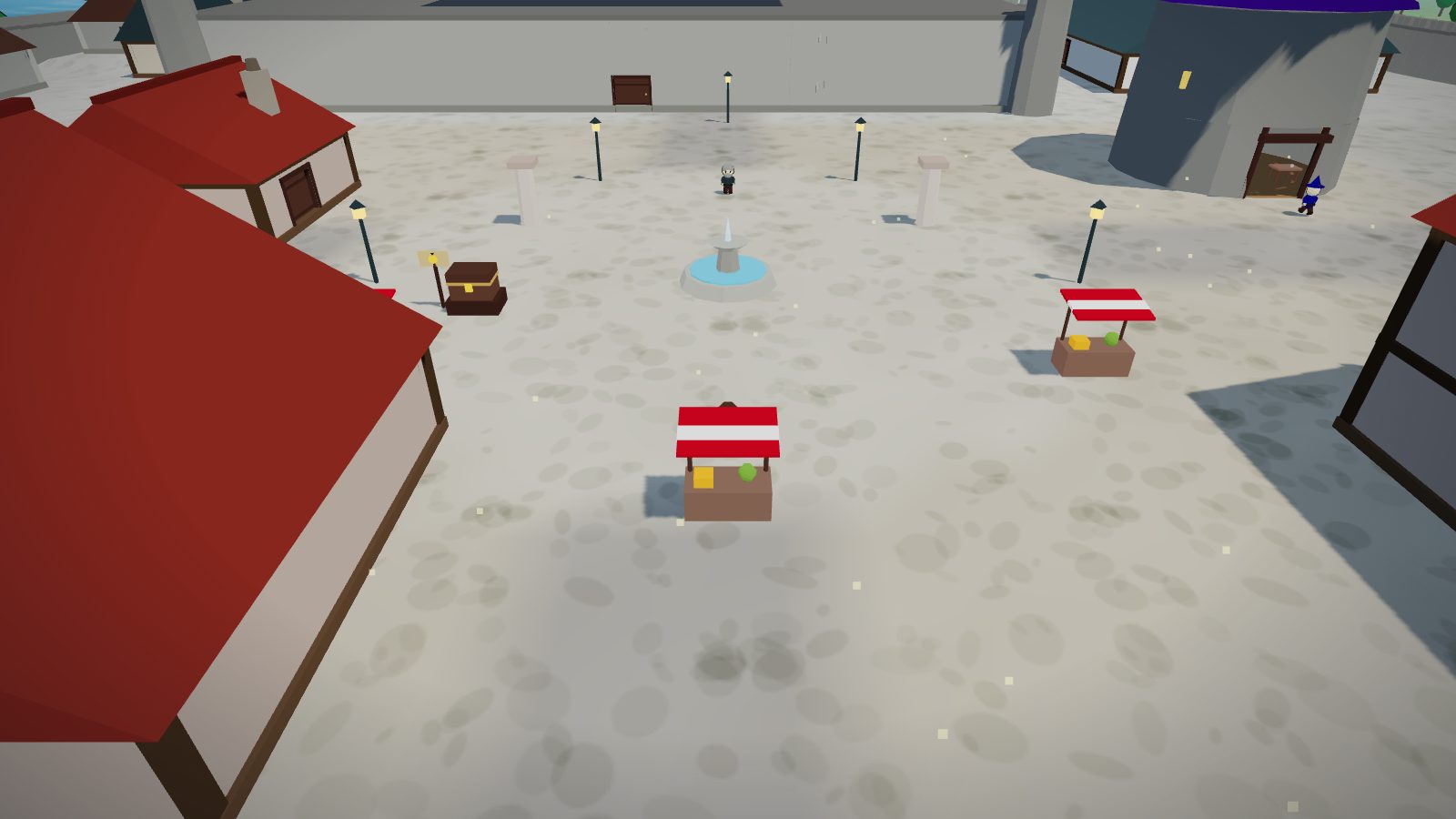
- Coronmar (south west): the walled Crown City. Three gates, a castle with several floors, the finest shops in the realm, and the Sewers beneath, which Steward Anselm wants someone to clear.
- Aurelia (south, on Solmara Bay): the Golden City. Grand markets, golden roofs, and Chancellor Elara, who pays a fortune to anyone who can kill a drake.
- Valeport and Solmara (east: Valeport on its lake, Solmara on Solmara Bay): harbour cities of trade and deep water fishing. Smugglers up the coast hold a shipment that is not theirs.
- Highspire (east highlands): a city of mages whose great beacon is guttering out.
- Castle Greyhold (south): a walled castle of games. The archery range, the Pit, and Lady Fortuna's dice. See Games and arenas.
- Thornwall (far east): a grim fortress city, the last safe wall before the ash.
- The Stormcrown and the Vale Heights: two massifs of snow capped peaks ringed in autumn forest. The heights are too steep to climb, but the maple country on their lower slopes is worth the trip.
- The Scorchlands (far north east): the endgame. A burning waste of ash and lava where ash stalkers, cinder wraiths, magma golems and the Ember Drake guard the greatest treasure in the realm.
The Sere
South of Aurelia the Rainwall catches the rain, and past it lies the Sere, a desert you reach on foot. The Isthmus Road runs from Solmara down the Horn Neck to Stonegate. The Ambermouth teleport, at Magic 69, is the quick way back.
- Stonegate (the pass in the Rainwall's east gap): where the caravans form up. Caravan Master Ruel is losing camels to jackals on the road south.
- The Tombs (between the pass and the Pan): a great pyramid and four lesser ones. Keeper Ashet guards a door that has not opened in her lifetime. The Sealed Door starts the Sere's storyline.
- Whitebrink (on the Pan's west brink): the salt town. Salt golems rise out of the crust on the flat.
- Deepwell (the oasis, where three roads meet): every caravan in the Sere waters at its pool.
- Dryford (the east coast, on Dryford Bay): the Sere's one harbour on the lee coast, with deep water fishing off the horn.
- Ambermouth (the south coast, on the Slake's estuary): the Sere's white city and its market, with a bank, a forge and an arcanum.
- The Sunken Court (south of the Ambermouth road): the lair of the Sand Queen, a level 82 boss, and her brood.
- Gullhithe (the west coast): the realm's holiday spot. Villas round a warm lagoon, the Tipsy Tiki bar, easy fishing, and sand crabs on the strand for new fighters to train on. The beach south of the village is more dangerous.
Across the seas
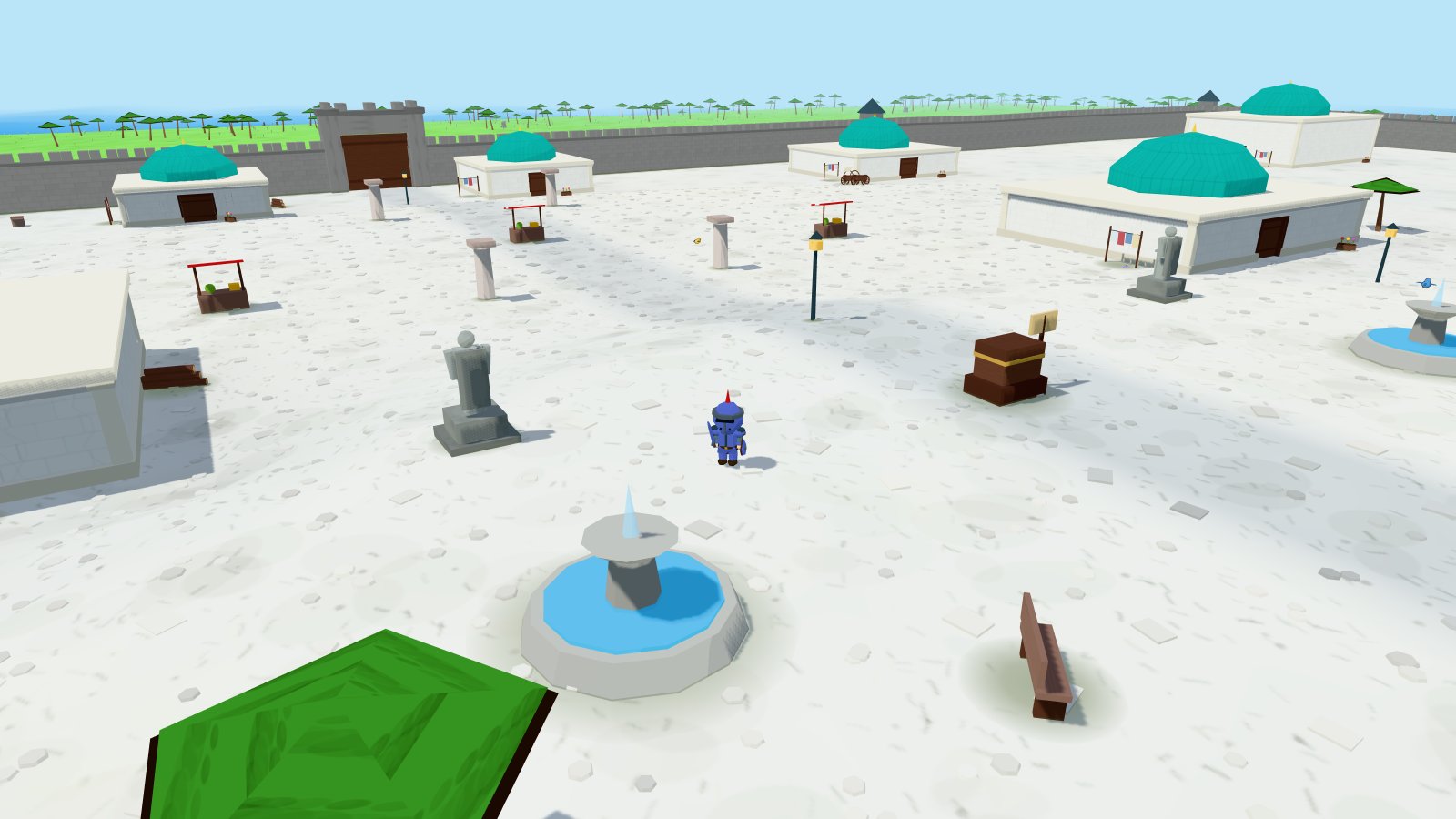
- The Gilded Coast, east across the Sunfall Sea: the richest land in the game. The gilded capital Auremont, the mining town Vessa with gold and runite in its hills, terraced gold country, and the Hollowvale, a grey dead crater every local will tell you to stay out of.
- Velmora, further south west: a marble city in three tiers, with the domed Pearl Palace at the top. It has a full city's shops and services, plus cutpurses in the arcades and marble sentinels guarding the palace tier.
- Vespera, west across the Dusk Sea: the biggest landmass in the game. A frozen north, prairie heartlands, a desert basin and a warm southern taper. Your port of entry is Westhaven.
- Vesperion, inland on Vespera: the greatest city in the world. Its one gate opens only for the Warden's seal, which comes late in the main story. Inside are the best stocked shops in the game, the Silver Vault bank, and the Eventide Colosseum.
Everything above, and every monster, spell, item and secret in the realm, is catalogued in the wiki. There is also a full world map.
Tips for new players
- Do The Road from Brightmeadow first. It walks you through fishing, cooking and woodcutting and pays for your first upgrades.
- Buy an axe and a tinderbox before you leave town. Cooked food from your own fire is free healing forever.
- Match your gear to your level. A new sword every 10 levels makes a bigger difference than you think.
- Check a monster's colour before you swing. Red names hit back harder than you expect.
- Wolves stop chasing you once you outgrow them. If somewhere feels too dangerous, come back 20 levels later and stroll through.
- Keep sigils for one teleport spell on you at all times.
- Sell your spare pelts, logs and fish. Coins buy arrows, sigils and better tools.
- Train Fishing and Cooking together by cooking what you catch.
- Before a boss, fill your whole bag with the best food you can cook.
- Sleeping in a bed heals you completely, for free. Every inn has beds upstairs.
- Right click everything. It is the fastest way to learn what a thing can do.
- Talk to everyone. The people of the realm point the way to its secrets.
Problems and answers
The screen is black, or the game will not load
- Reload the page properly: Ctrl Shift R on Windows, Cmd Shift R on a Mac.
- Update your browser. The game needs a reasonably recent one.
- Turn on graphics acceleration in your browser settings, then restart the browser.
- Try it in Chrome to rule out a browser specific problem.
- Check the status page in case it is us and not you.
It says my game is running an old version
Your browser served you a cached copy of the game. Do a hard reload with Ctrl Shift R, or clear this site's cache. If that does not do it, an update is rolling out right now. Wait a minute and try again.
The game is choppy or slow
Go to Making the game run faster. If you are on a laptop, the section about the two graphics chips most likely has your answer.
I clicked something and nothing happened
- You may not have the level for it. A level 60 tree will not budge for a level 59 woodcutter.
- You may not have the tool. Chopping needs an axe in your bag, mining needs a pickaxe, fishing needs the right gear for that catch.
- Your bag may be full. 28 items is the limit.
- Check the message log in the bottom left. The game almost always says why.
I cannot buy something
Not enough coins, a full bag, or the shop is out of stock. The message in the bottom left tells you which. Shops restock over time.
I am stuck somewhere and cannot get out
Open Settings and use Stuck? Return to Brightmeadow. It is free and always works.
I lost my items when I died
You did not. Dying puts you back at the Brightmeadow chapel with everything you were carrying. Check your inventory and equipment tabs. If something is missing, use Report a bug and tell us what happened.
There is no sound
Click anywhere on the page first. Browsers block audio until you interact with the page. After that, check the Sound page under Settings, All settings, and your device volume.
My friend cannot join me
- You both need real accounts. Guests cannot use friends or invites.
- You both need to be friends already, with the request accepted on both sides.
- Your world may be full. A free host seats 2 players and a Keeper host 5, counting the host, and the host can lower that in World settings.
- Marked and unmarked characters always play separately. If one of you has used the Warden's Menu, that is why.
Can I play on my phone and my computer with the same character?
Yes, as long as you have an account rather than a guest character. Your progress is saved online, so log in anywhere and carry on. One character at a time, though.
Can I play offline?
No. The world runs on our servers, so you need a connection. Installing the game as an app makes it open faster and shows its own page instead of a browser error when you lose signal, but it does not make the game playable offline.
Is it really free? Is there anything to buy?
It is free. No download, no battle pass, no energy timers, no premium currency. Everything you get, you earn in the game.
I forgot my password
Use the password reset page. If you cannot get in at all, the support page is the place to go.
What is the Warden's Menu, and should I use it?
It is a set of testing tools. Using them permanently marks your character with the Warden's Mark, and marked characters can only ever play with other marked characters. It warns you before anything happens. If you want your progress to count, leave it alone.